Home › Setup Guides › What is Amazon Fire TV?
Amazon Fire TV is one of the most popular streaming media players in the world — and a top choice for IPTV FireStick users. It acts as a bridge between the internet and your television, giving you access to thousands of streaming channels including Netflix, Hulu, HBO, Amazon Prime Video, and YouTube. But beyond mainstream apps, Fire TV’s real power for IPTV enthusiasts lies in its Android-based OS, which allows full sideloading and installation of third-party IPTV apps for FireStick.
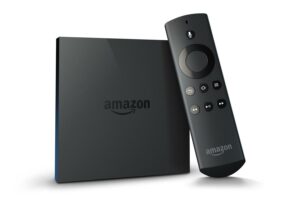
Whether you’re looking for the best IPTV for FireStick, want to know how to set up a jailbroken FireStick, or simply need to understand Fire TV Stick configuration, this guide covers everything.
Amazon Fire TV Models – Which One Is Best for IPTV?
Amazon offers several Fire TV models, each suited to different needs:
Fire TV Stick — The classic, affordable stick that plugs directly into your TV’s HDMI port. One of the most popular devices for IPTV FireStick setups. Lightweight and portable.
Fire TV Stick 4K / 4K Max — The most popular choice for 4K IPTV streaming. Faster processor and improved Wi-Fi make it the best FireStick for IPTV in 2025.
Fire TV Cube — The most advanced model, combining Fire TV with Alexa voice control for a completely hands-free IPTV experience.
Fire TV Recast — Designed for over-the-air TV broadcasts alongside streaming content. Less common for IPTV use.
For IPTV on FireStick, the Fire TV Stick 4K and Fire TV Stick 4K Max are the top recommendations due to their processing power, faster RAM, and support for all major IPTV player apps.
Fire OS – The Operating System Behind Amazon Fire TV
All Amazon Fire TV devices run Fire OS, a modified version of Android. Since Fire OS is Android-based, most Android apps — including all major IPTV apps for FireStick — are compatible. This is what makes the FireStick so powerful for IPTV: you can install apps directly from the Amazon Appstore, or sideload APK files from external sources.
For developers, Amazon provides an App Testing Service to ensure full Fire TV compatibility before publishing.
How to Install IPTV on Amazon Fire TV
There are two main approaches to setting up IPTV on FireStick:
Option 1 – Install from the Amazon Appstore (No Jailbreak Required)
Several IPTV-compatible apps are available directly from the Amazon Appstore, including:
- TiviMate (via Downloader)
- IPTV Smarters Pro (sideload APK)
- Kodi (available on Appstore)
Option 2 – Jailbreak FireStick (Sideload Apps from Unknown Sources)
A jailbroken FireStick simply means enabling the device to install apps from outside the Amazon Appstore — not an illegal process, just enabling Developer Options. Here’s how:
- Go to Settings → My Fire TV → Developer Options.
- Enable ADB Debugging and Apps from Unknown Sources.
- Install the Downloader app from the Amazon Appstore.
- Use Downloader to sideload your preferred IPTV APK.
This is the standard setup for anyone wanting to install apps for a jailbroken FireStick like IPTV Smarters Pro, Perfect Player, or GSE Smart IPTV.
Advantages of Amazon Fire TV for IPTV
Wide App Compatibility — Fire OS supports virtually all Android IPTV apps, both from the Appstore and via sideloading on a jailbroken FireStick.
Easy Setup — Fire TV Stick configuration for IPTV takes less than 10 minutes, with guides available for every major app.
Alexa Voice Control — The Fire TV Cube adds hands-free IPTV control via Alexa voice commands — change channels, search content, or adjust volume without touching the remote.
Affordable — The FireStick is one of the most cost-effective IPTV streaming devices available, especially compared to dedicated IPTV set-top boxes.
Portable — Plug it into any TV’s HDMI port — at home, at a hotel, or anywhere else.
FAQs
1. What is the best FireStick for IPTV?
The Fire TV Stick 4K Max is the best FireStick for IPTV in 2025. It offers the fastest processor, Wi-Fi 6 support, and 2GB RAM — ideal for running TiviMate, IPTV Smarters, and Kodi add-ons without buffering.
2. How do I jailbreak a FireStick for IPTV?
Enabling Developer Options on FireStick (Settings → My Fire TV → Developer Options → Apps from Unknown Sources) is all you need to sideload IPTV apps. This is commonly referred to as “jailbreaking a FireStick” — it’s fully legal and straightforward.
3. What apps are on a jailbroken FireStick?
Popular apps for a jailbroken FireStick include TiviMate, IPTV Smarters Pro, Kodi with Kodi add-ons, Perfect Player, GSE Smart IPTV, and more. These are the most commonly installed IPTV apps for FireStick.
4. How do I configure Fire TV Stick for IPTV?
Fire TV Stick configuration for IPTV involves: enabling Developer Options, installing the Downloader app, sideloading your preferred IPTV APK, and entering your IPTV provider credentials (Xtream Codes or M3U URL).
5. Is TiviMate the best IPTV app for FireStick?
TiviMate FireStick is widely considered the best premium IPTV player for FireStick, thanks to its EPG, Catch-Up, multi-playlist support, and recording features. It requires a TiviMate Premium subscription for full functionality.
6. How do I install IPTV Smarters Pro on FireStick?
Enable Apps from Unknown Sources in Developer Options, install the Downloader app, and enter the IPTV Smarters Pro APK link.
7. How do I install TiviMate on FireStick?
Use the Downloader app with the TiviMate APK link. Go to Settings → Developer Options → Apps from Unknown Sources → Enable for Downloader, then install.
8. Does Fire TV Stick support 4K IPTV?
Yes — the Fire TV Stick 4K and 4K Max models support 4K IPTV streaming, provided your IPTV provider offers 4K channels and your internet speed is at least 25–50 Mbps.
9. How do I clear the cache on FireStick to fix IPTV buffering?
Go to Settings → Applications → Manage Installed Applications, select your IPTV app, and tap “Clear Cache”. Clearing cache regularly improves FireStick performance and reduces IPTV buffering. See our full guide on how to clear cache on FireStick.
10. Can I use screen mirroring from iPhone to FireStick for IPTV?
Yes — screen mirroring iPhone to FireStick is possible via AirPlay (on supported Fire TV models) or using the Amazon Mirroring feature. However, for the best IPTV experience, installing a dedicated IPTV app for FireStick directly on the device is recommended.
Conclusion
Amazon Fire TV — and especially the FireStick 4K Max — remains one of the best and most affordable devices for IPTV streaming in 2025. With Android-based Fire OS, full support for jailbroken FireStick app sideloading, and access to the best IPTV apps for FireStick like TiviMate and IPTV Smarters Pro, it’s the go-to choice for cord-cutters worldwide. Configure your device using the steps in this guide and start enjoying IPTV on FireStick today.
Ready to start watching?
Try Nartiel8k free for 24 hours, or pick the plan that fits your household.
Start Free TrialSee Plans