Home › Setup Guides › What is Chromecast?
In today’s world of digital entertainment, Chromecast stands out as one of the simplest and most effective ways to transform any HDMI-enabled TV into a full-featured IPTV streaming hub. Whether you’re a cord-cutter exploring the best IPTV service options or a seasoned user looking to optimize your setup, this guide covers everything — from what Chromecast is, to how to pair it with your IPTV service provider using BubbleUPnP for a seamless, top-rated viewing experience.
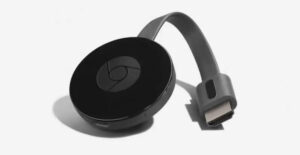
What is Chromecast?
Chromecast is a compact, plug-and-play streaming device developed by Google. It connects directly to your TV’s HDMI port and lets you wirelessly cast content from your smartphone, laptop, or tablet to your screen. Powered by Google Cast technology, Chromecast enables smooth playback of internet-streamed audio and video from compatible apps — including any IPTV streaming application or M3U player.
Key Features of Chromecast
– Quick and simple setup on any HDMI-enabled TV
– Compatible with major platforms: Netflix, YouTube, Hulu, and all major IPTV services
– Screen mirroring for photos, videos, and web pages
– Google Assistant integration for hands-free control
– Fully supports IPTV streaming apps and M3U playlist playback
Whether you’re watching movies, casting from your IPTV stream player, or mirroring your browser, Chromecast makes big-screen entertainment effortless.
How to Use Chromecast
Getting Started
1. Set Up Your Device: Plug Chromecast into your TV’s HDMI port and connect it to a power source.
2. Install the Google Home App: Download the app on your smartphone or tablet to complete the initial setup.
3. Connect to Wi-Fi: Ensure both your Chromecast and your controlling device are on the same Wi-Fi network.
Once configured, you can start casting content from any compatible app — including your IPTV player — directly to your TV.
How to Stream IPTV on Chromecast
Chromecast is one of the most accessible and cost-effective ways to enjoy your IPTV streaming service on a large screen. Without needing a dedicated IPTV box, you can cast any live IPTV channel from your M3U playlist to your television using the BubbleUPnP app.
Step-by-Step IPTV Streaming Guide
Step 1: Power on your TV and connect your Chromecast. Install the BubbleUPnP app on your Android smartphone.
Step 2: Connect both your smartphone and Chromecast to the same Wi-Fi network — this is essential for stable IPTV streaming performance.
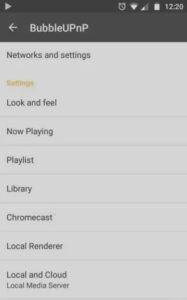
Step 3: Open the left-side menu in BubbleUPnP, select your Chromecast device from the list, and confirm the connection.
Step 4: Be aware that Chromecast does not natively support all audio formats and video codecs used by IPTV service providers. A transcoding step may be required to ensure full compatibility with your IPTV stream.
Step 5: To handle unsupported formats, install the transcoding add-on within BubbleUPnP. This allows your IPTV streaming content to be converted in real time directly on your smartphone before being cast.
Step 6: Access app settings via the left-side menu in BubbleUPnP.
Step 7: Open the Chromecast sub-menu within the settings panel.
Step 8: Select the local transcoding components. BubbleUPnP will automatically download everything needed to process your IPTV streams on-device.
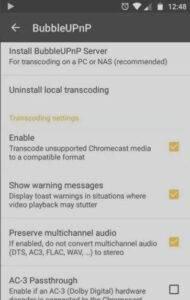
Step 9: Once installation is complete, enable transcoding in settings by toggling the Enable option.
Step 10: Your setup is now ready for full IPTV streaming on Chromecast. BubbleUPnP supports .m3u8 files — the universal format supported by all top rated IPTV service providers.
Step 11: Download your M3U file from your IPTV service provider and save it to your smartphone. Open BubbleUPnP, go to the Library section, select Internal Storage, locate your M3U playlist, and load it.
Step 12: Select your desired channel from the M3U playlist and begin casting your live IPTV content to your Chromecast.
BubbleUPnP — The Best IPTV Streaming Companion for Chromecast
BubbleUPnP is widely regarded as the best IPTV companion app for Chromecast users. It dramatically expands what Chromecast can do, adding support for diverse media servers, cloud storage, and M3U playlist formats — making it an essential tool for anyone serious about IPTV streaming.
Multi-Device Support
– Chromecast, Chromecast Audio, Nexus Player, Nvidia Shield
– Smart IPTV-compatible TVs with DLNA support
– Popular gaming consoles (Xbox, PlayStation)
– Amazon Fire TV and Fire Stick (also ideal for IPTV subscription users)
Media Access
– UPnP/DLNA media servers
– Local files stored on your Android device
– Cloud services: Google Drive, Dropbox, OneDrive
– Music streaming platforms: TIDAL, Qobuz
Whether you’re loading an M3U file from your IPTV service provider or casting locally stored content, BubbleUPnP is the most flexible and powerful free tool available for IPTV streaming on Chromecast.
Why Combine Chromecast with an IPTV Streaming Service?
For users seeking the best IPTV experience without buying an expensive IPTV box, Chromecast is the perfect solution. Your smartphone acts as the remote and controller, while Chromecast handles the display — delivering any top rated IPTV service directly to your screen.
Key Benefits of Chromecast + IPTV Streaming:
– No dedicated IPTV box required — just your TV’s HDMI port
– Works with any IPTV subscription that provides an M3U file or playlist
– Compatible with both free IPTV sources and premium IPTV service providers
– Supports all leading best IPTV services on the market
– Quick setup — plug in via HDMI and start IPTV streaming in minutes
Pair Chromecast with a reliable IPTV service provider, load your M3U playlist, and you’re ready for live TV, sports, news, and entertainment — all through your existing screen.
Conclusion
Chromecast is an innovative, budget-friendly streaming device that unlocks the full power of IPTV streaming on your television. By pairing it with BubbleUPnP and a quality IPTV service, you gain access to hundreds of live channels, on-demand content, and M3U playlist management — all without a traditional cable subscription or a dedicated IPTV box.
Whether you’re new to IPTV streaming or looking to upgrade your setup, the Chromecast + BubbleUPnP combination is one of the most practical, affordable, and top rated solutions available today. Start your free IPTV trial, load your M3U file, and experience the future of live TV.
Have questions or need support? Our expert team is always here to guide you through every step of your IPTV streaming journey.
Explore our pricing table for affordable IPTV subscription plans to fit every budget, and check out our full channel lineup — covering entertainment, sports, news, and more. With flexible IPTV service options from top rated IPTV providers, the perfect plan is waiting for you. Contact us today and unlock the full potential of your **IPTV streaming** experience!
FAQs
Q1. What is Chromecast and how does it work?
Chromecast is a compact streaming dongle developed by Google that plugs into your TV’s HDMI port and lets you wirelessly cast content from your smartphone, tablet, or computer. It works by connecting to your Wi-Fi network and using Google Cast technology to stream audio and video from compatible apps — including IPTV streaming players and M3U playlist applications — directly to your television. Setup takes just a few minutes and requires no technical expertise.
Q2. How do I stream IPTV on Chromecast?
To enable IPTV streaming on Chromecast, you’ll need the BubbleUPnP app on your Android smartphone. Connect both devices to the same Wi-Fi network, select your Chromecast as the output device in BubbleUPnP, then load your M3U file or M3U playlist from your IPTV service provider. Enable the transcoding add-on within BubbleUPnP to ensure full codec compatibility, then select any channel and start casting your live IPTV content to your TV.
Q3. What is the best IPTV service to use with Chromecast?
The best IPTV service for Chromecast is one that provides a stable M3U playlist or M3U file and offers a wide selection of live channels. When evaluating IPTV service providers, look for those offering a free IPTV trial, a broad channel lineup, and a reliable IPTV streaming connection. The best IPTV services also include EPG (Electronic Program Guide) data within the M3U feed, allowing you to browse schedules directly through BubbleUPnP on Chromecast.
Q4. Do I need an M3U file to stream IPTV on Chromecast?
Yes. An M3U file (or M3U playlist) is essential for IPTV streaming on Chromecast. It is a text-based file containing the URLs of all your IPTV channels, supplied by your IPTV service provider. BubbleUPnP fully supports the .m3u8 format, which is the universal standard across all top rated IPTV services. Once you download your M3U file and load it into BubbleUPnP, your entire channel list is available to cast directly to your Chromecast.
Q5. Is IPTV streaming legal?
IPTV streaming is fully legal when used with a licensed and authorized IPTV service provider that holds the appropriate broadcasting rights. Many legitimate IPTV services and ISPs operate entirely within the law. However, accessing unlicensed or pirated IPTV streams — regardless of the device or app used — is illegal. Always verify that your IPTV subscription comes from a reputable, legal IPTV provider before getting started.
Q6. Can I use Chromecast without an internet connection?
Chromecast requires an active Wi-Fi connection for almost all of its functions, including IPTV streaming. Without internet access, you cannot cast content from apps or load M3U playlists from your IPTV service. Chromecast does offer limited offline functionality through Guest Mode, but this does not support IPTV streaming. A stable, high-speed internet connection is recommended for the best IPTV streaming experience — especially for HD or 4K channels.
Q7. Is Kodi compatible with Chromecast for IPTV streaming?
Kodi cannot be installed directly onto a Chromecast device, but you can still use it for IPTV streaming by casting from a smartphone or computer. Simply open Kodi on your phone or laptop — with your IPTV service configured — and cast the stream via Google Cast to your Chromecast. For a more seamless IPTV streaming experience without workarounds, BubbleUPnP with an M3U playlist from your IPTV service provider is the recommended approach.
Q8. What makes BubbleUPnP the best IPTV streaming app for Chromecast?
BubbleUPnP is the most complete IPTV streaming companion for Chromecast because it combines broad codec support, real-time transcoding, and full M3U file compatibility in a single free app. Unlike basic casting apps, it handles the audio and video format limitations of Chromecast automatically — making it compatible with virtually every IPTV service and M3U playlist format on the market. It also supports DLNA/UPnP media servers, cloud storage, and multi-device casting — offering more flexibility than any other smart IPTV streaming solution for Chromecast.
Ready to start watching?
Try Nartiel8k free for 24 hours, or pick the plan that fits your household.
Start Free TrialSee Plans